
Live tool: peppolverify.com
Peppol Verify is a free, browser-based tool that checks whether Australian and New Zealand businesses are registered to receive Peppol document types, including electronic invoices (eInvoices). Paste in one identifier or a whole list, and it tells you who is registered, who is not, and can optionally show additional details from their Service Metadata Publisher (SMP).
This guide explains what the tool does, how to use it, and a little about how it works under the hood.
What problem it solves
Before you send an eInvoice to a business through Peppol, it helps to know they are actually set up to receive one. A business is only reachable on the network if it has been registered by its access point provider. There is no single mass search tool for this across AU and NZ, so checking has traditionally meant technical lookups that most people would rather not do by hand.
Peppol Verify wraps that lookup in a simple interface. You give it identifiers, it does the technical work and it gives you a clear answer.
Who it is for
The tool is public and free to use. It is aimed particularly at government agencies and businesses in Australia and New Zealand who need to confirm eInvoicing readiness, whether that is checking a single supplier or validating a large list of trading partners ahead of an onboarding programme.
What you can check
Peppol Verify supports the two main business identifiers used across the region:
- ABN (Australian Business Number), using the Peppol scheme 0151
- NZBN (New Zealand Business Number / Global Location Number), using the Peppol scheme 0088
You pick the identifier type, paste in the numbers, and run the check.
Using the tool
Running a lookup
Choose the identifier scheme for the appropriate country, paste one or more identifiers into the input, and start the lookup. You can check a single business or a large batch at once. Results stream in as each identifier is resolved, and a running summary keeps count of how many have been checked and what the outcomes are.
Reading the results
Each identifier comes back with one of a few outcomes:
- Registered. The business is on the network and can receive Peppol documents.
- Not registered. No receiving capability was found for that identifier. This is a normal, common result and simply means the business is not registered to receive Peppol documents.
- Invalid. The identifier failed its checksum, so it is not a well-formed ABN or NZBN. This usually points to a typo rather than a registration problem.
- Error. Something went wrong during the lookup itself, such as a network issue reaching the provider. Failures are re-tried automatically.
A note on "registered"
Being registered on Peppol is about the ability to receive eInvoices. A business can still send invoices through a connected access point without appearing as registered in a lookup. So an identifier showing as not registered means the business cannot currently receive via Peppol, not that they are absent from eInvoicing altogether.
Recently registered businesses
Registration lookups are resolved through public DNS, which can take a short time to reflect a newly registered business. If you have just registered, or you are checking someone who registered very recently, a not registered result may simply reflect that delay. Waiting a few minutes to a few hours and trying again usually resolves it.
Getting more detail
By default, Peppol Verify does a quick check: is this business registered, yes or no. If you want more, you can turn on the option to fetch additional details from the SMP (the provider's directory service). With that enabled, each registered business can also show:
- Entity name. The business name published on the Peppol business card. Accuracy depends on what the provider has published, so it may be absent, out of date or differ from the trading name.
- Access point provider. The service provider that hosts the business on the network.
- Document types. The specific kinds of documents the business is configured to receive, such as invoices and credit notes.
Fetching these extra details takes a little longer, since it involves more lookups per business, which is why it is an option rather than the default.
Understanding document types
When additional details are on, each registered business shows the document types it can receive as a set of labelled chips. These carry a bit of extra information using colours, icons and tooltips.
Each chip is colour-coded by the status of the document type:
- Active means the document type is current and in use.
- 🟨 Deprecated means it is still valid but being phased out.
- 🟥 Removed means it is no longer usable on the network.
Each chip also carries an icon showing how the document type matches:
- ✳ Wildcard accepts a range of related document types.
- ◉ Exact is one specific document type.
A short legend explaining all of this is available in the information panel next to the results.
Filtering and exporting
Filtering
Once you have results, you can filter them to focus on what matters. You can filter by status (registered, not registered, and so on) and, when additional details are enabled, by document type (for example, show only businesses that can receive credit notes). Filters work together, so you can narrow to something like "registered businesses that can receive credit notes" in a couple of clicks. The filter controls double as a live summary, showing how many businesses fall into each group.
Exporting
You can export your results to a CSV file or copy them to the clipboard, ready to drop into a spreadsheet. The export includes the identifier, status and (when additional details are on) the entity name, access point provider and document types. If you have a filter applied, the export reflects exactly what you have filtered to and includes a short note recording which filter was used so the file makes sense later.
Test network
There is an option to run lookups against the Peppol test network instead of the live production network. This is useful for people validating test participants during onboarding or development. For everyday checks of real businesses, leave it off. Note that real businesses will not appear on the test network, and test participants will not appear on the production network, so the two are kept entirely separate.
How it works
Under the hood, checking Peppol registration is a two stage process.
Stage 1: Registration check (DNS)
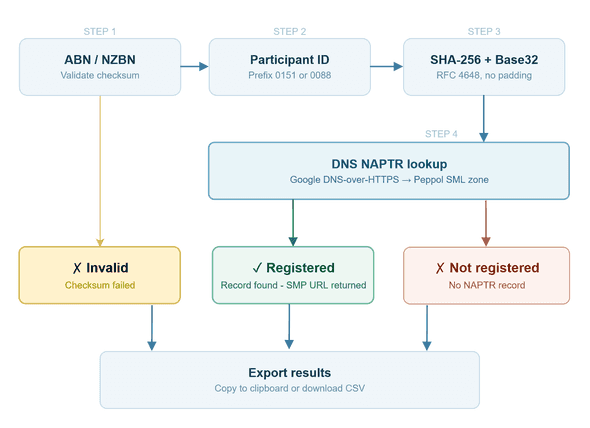
The first stage is a Domain Name System (DNS) lookup. Peppol uses DNS, the same technology that turns website names into addresses, as a distributed directory of who is on the network. The registration check follows the same SMP resolution process that Peppol access points use in production:
-
The identifier is normalised and validated against its scheme's checksum algorithm.
-
A participant identifier is constructed using the ISO 6523 ICD code (
0151for ABN,0088for NZBN). -
The identifier is SHA-256 hashed and Base32 encoded (RFC 4648, no padding).
-
A DNS Naming Authority Pointer (NAPTR) lookup is performed via Google's DNS-over-HTTPS API against the Peppol SML zone.
-
A NAPTR record in the response confirms the participant is registered and returns their SMP URL.
If a record exists, the business is registered, and the record points to the SMP (the provider's directory service) that holds their details. The whole stage runs client-side in the browser; no data leaves your machine other than the DNS queries themselves.
Stage 2: Participant details (SMP)
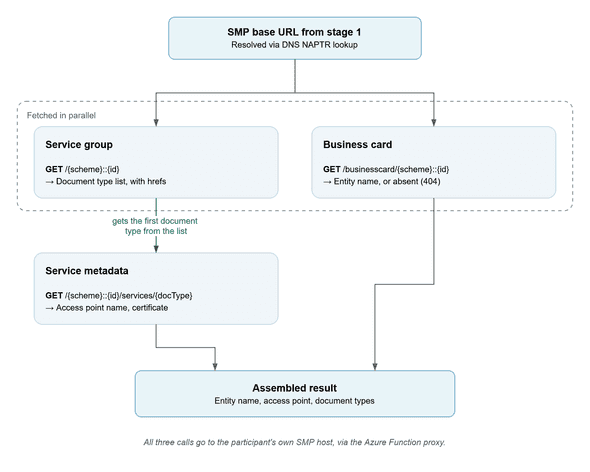
The second stage, used only when you ask for additional details, follows that pointer to the participant's own SMP and reads the detail directly from there:
-
The service group is fetched, returning the list of document types the participant is configured to receive.
-
The service metadata for the first document type is fetched, returning the endpoint details, from whose certificate the access point provider's name is derived.
-
In parallel the business card is fetched, returning the registered entity name.
These are queries to the individual SMPs that host each business, not to any single central server, which reflects how Peppol is designed as a decentralised network.
Unlike Stage 1, the SMP calls do not run in the browser. SMPs are operated independently by service providers and do not send the cross-origin resource sharing (CORS) headers a browser needs to call them cross-origin, so a direct browser request would be blocked before it left the page. Instead, the SMP calls route through a small Azure Function proxy: the browser asks the function, the function calls the SMP, and the response comes back. The proxy retains no lookup history beyond short-lived response caching and standard operational error logs. SMP responses are cached briefly for performance. It exists purely to work around the CORS restriction that would otherwise make these reads impossible from a static site.
Privacy and cost
Peppol Verify is free and does not require an account. It only reads publicly available registration data from the Peppol network and does not store the identifiers you look up beyond what is needed to perform the lookup. Full details are in the tool's privacy policy and terms.
Try it
You can use Peppol Verify at peppolverify.com. It runs entirely in your browser, there is nothing to install, and it is free to use.
Disclaimer
Peppol Verify is an independent community tool and is not affiliated with, endorsed by, or associated with OpenPeppol, the Australian Taxation Office, Ministry of Business, Innovation and Employment, any Australian or New Zealand Government entity, or any other official Peppol authority.
Results are provided as-is. Always verify critical information through official channels.